The Layout of Rstudio
Completion requirements
View
How do you use RStudio?
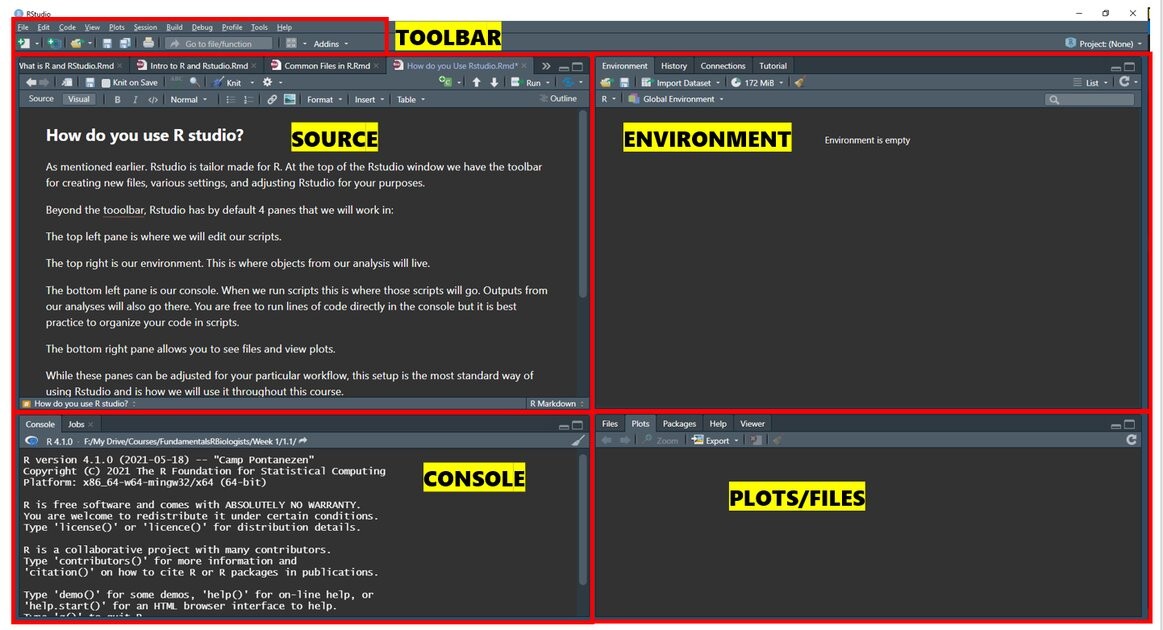
RStudio is tailor made for R. At the top of the Rstudio window we have the toolbar with various buttons for creating new files, configuring settings, and adjusting Rstudio for your purposes.
Beyond the toolbar, Rstudio has by default 4 panes that we will work in:
- The top left pane is our source. Here is where we will edit our scripts and Rmarkdown files. We can also view full data sets here.
- The top right pane is our environment. This is where objects from our analysis will live.
- The bottom left pane is our console. When we run scripts this is where those scripts will go. Outputs from our analyses will also go there. You are free to run lines of code directly in the console as well.
- The bottom right pane allows you to see files and view plots.
While these panes can be adjusted for your particular workflow, this setup is the most standard way of using Rstudio and is how we will use it throughout this course.
You may also notice that my Rstudio has a different color scheme than yours. That can be changed by going to Tools> Global Options> Appearance and changing the editor theme. I use Idle fingers.
Last modified: Tuesday, 2 December 2025, 5:18 AM