Loading Data
Now let’s talk about loading data into R. As a reminder, your working directory needs to be set in order to properly load and save data in R.
Once your working directory is set, let’s place the data we want to use inside of that folder.
Here we have a file named example.csv placed inside our working directory.
To load the .csv file into R, we will use the function read.csv()
read.csv('example.csv')
##    ID age length_mm mass_g habitat_type
## 1   A   1        12     55        urban
## 2   B   1        11     43        urban
## 3   C   3        15     61        urban
## 4   D   1        16     43        urban
## 5   E   2        17     43     suburban
## 6   F   2        17     51     suburban
## 7   G   3        17     52     suburban
## 8   H   1        15     55        rural
## 9  ID   1        14     57        rural
## 10  J   2        13     49        rural
The above example simply reads the data. Reading the data is how we tell R to interpret a data set so that it can be used. If we want to use the data in R, it is best to assign it to an object. Let’s do that, by naming the object df
df <- read.csv('example.csv')
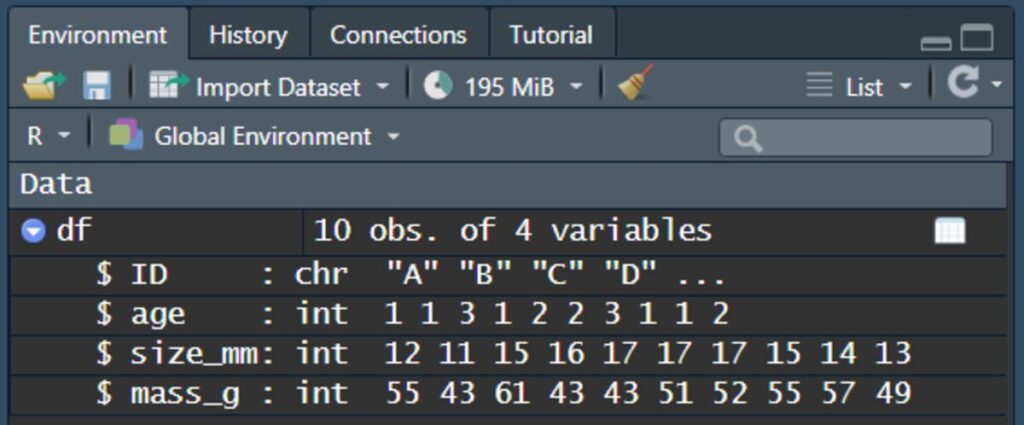
If you run this bit of code yourself, you should see the object df under the environment window in the top right pane of your RStudio.
Important considerations
Your working directory needs to be set correctly and the file you wish to load is placed inside that working directory
The filename needs to be typed exactly as it appears (capitalizations, spaces, symbols, etc.)
You need to include the file extension. In the case of the example.csv dataset, the file extension is .csv. This file extension stands for Comma Separated Values. Every file has an extension however, they may be hidden on your device.
Refer to this documentation for assistance in Windows: https://www.howtogeek.com/205086/beginner-how-to-make-windows-show-file-extensions/
For Mac: https://support.apple.com/guide/mac-help/show-or-hide-filename-extensions-on-mac-mchlp2304/mac